Environment preparation guide
- With this guide, you can enable a virtual machine in the VLE environment with the Windows 11 operating system required for the course installed
- VLE environment is part of LabraNet production network in JAMK and thus it requires a VPN connection to LabraNet in order to work
Phase 1: Establish VPN connection to LabraNet
- Use this guide for defining your VPN connection: LabraNet Remote Access Guide
- Important: All your network traffic is routed through LabraNet when VPN tunnel is established so only use VPN connection for study purposes!
Phase 2: Connect to VLE environment
- Open your browser and go to the address https://portal.vle.fi
- Login using your LabraNet credentials (same you would use for logging in to the computer in the classroom)
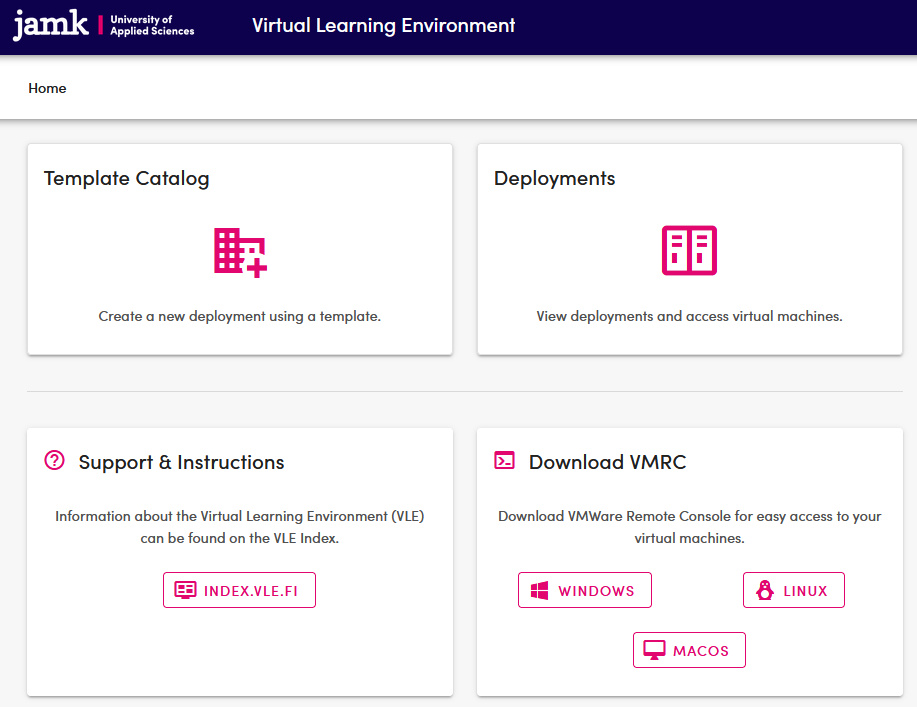
- After a successful login you should have VLE front page opened as presented in the example image below
Phase 3: Deploy your virtual machine
- In this phase you will deploy yourself a new virtual machine using the template catalog in VLE
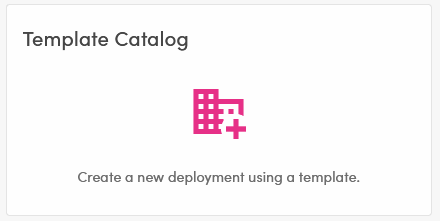
- Open the Template catalog from the front page of VLE
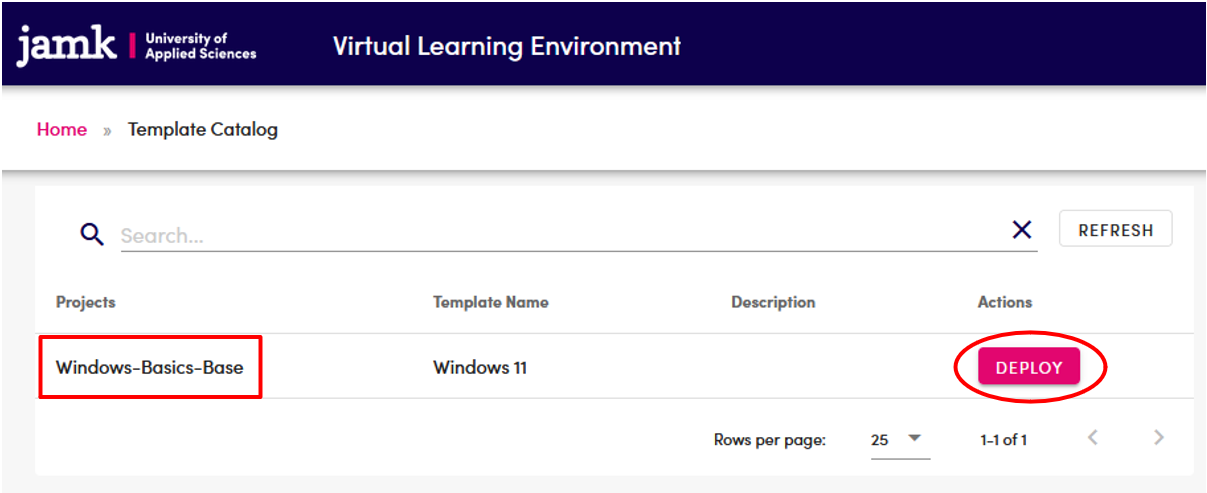
- You should see a template named Windows-Basics-Base as presented in the example image below
- Click DEPLOY button
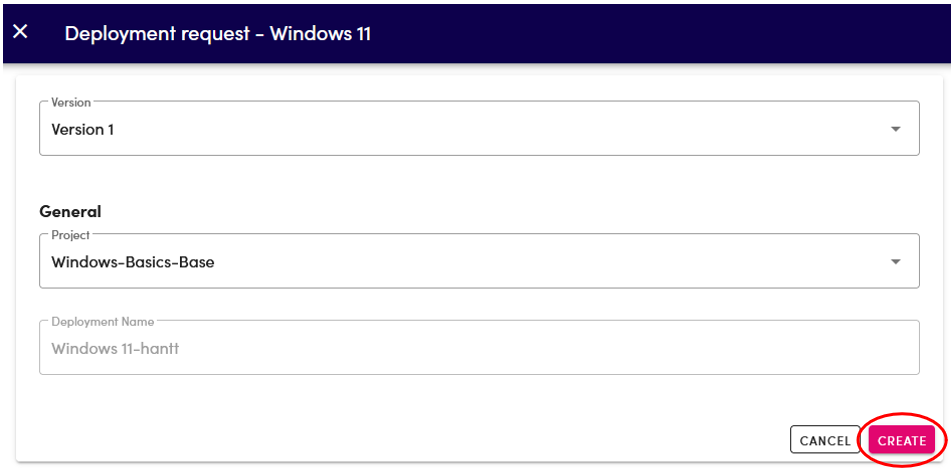
- You should now see Deployment request -window (see exmaple image below)
- Default values will be used for the image to be deployed
- Click CREATE button
- Wait until the deployment is finished
Phase 4: Connect to your virtual machine
- After the successful deployment, you should find your newly created virtual machine under the Deployments section in VLE
- Open the Deployments from the front page of VLE
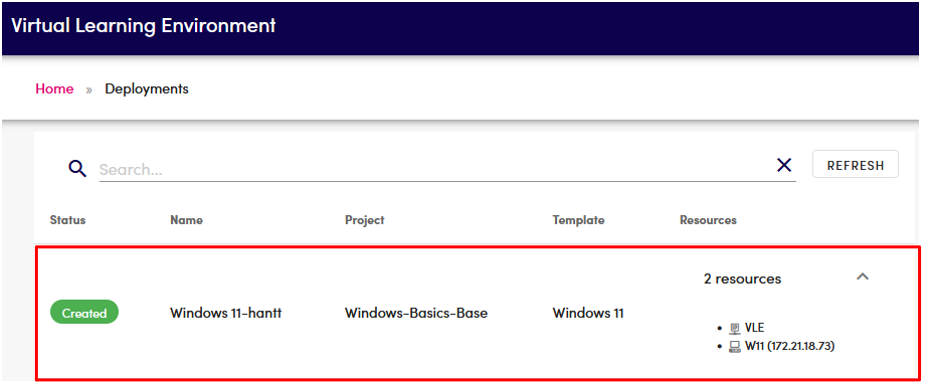
- You should now see all deployed virtual machines (see example image below)
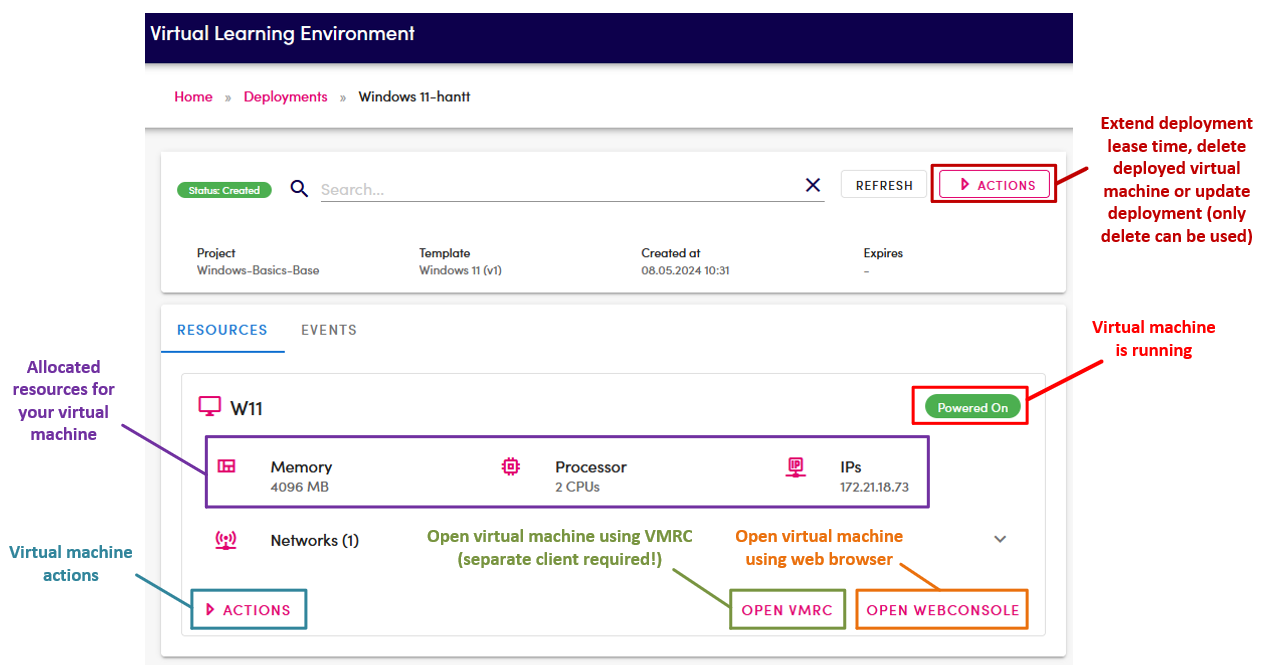
- Click your virtual machine and you should see the management and information page of the selected virtual machine similar to what is presented in the example image below
-
As can be seen from the example image above, you have two options for running the virtual machine:
- VMRC: This requires a separate client application
- Webconsole: Will be opened to a new browser window
-
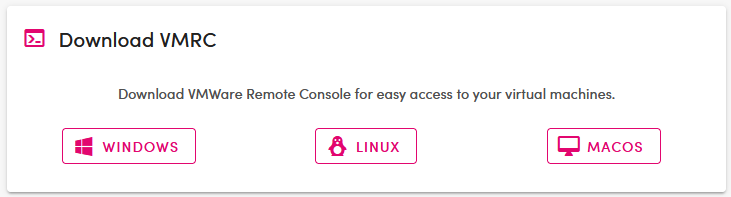
VMRC client can be downloaded for all modern operating systems from the front page of VLE (see example image below)
Note: When you finish using the virtual machine, close VMRC or the browser window!
- Below is an example image of the view which you should see when using the web console.
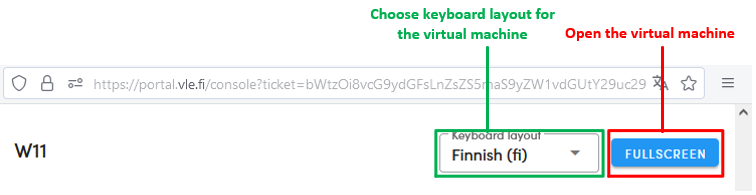
- You can login to your Windows 11 virtual machine by using the following default credentials:
- Username: User
- Password: Root-66