Security
Background
Security in Windows 11 is crucial for several reasons. Let's explore why:
-
Advanced Threats: As cyberattacks become more sophisticated, robust security measures are essential. Windows 11 introduces new features to protect against both current and future threats. These include secured-core PCs, which are significantly more resilient to malware, and the Microsoft Pluton Security Processor that isolates sensitive data like credentials and encryption keys.
-
Passwordless Authentication: Traditional passwords are vulnerable to attacks. Windows 11 offers passwordless authentication options, such as passkeys, making it harder for hackers to exploit stolen passwords through phishing attacks.
-
Hybrid Work Environment: With the shift to hybrid work, organizations face increased risks. Windows 11 provides security updates that combine modern hardware and software, protecting users from chip to cloud. These enhancements defend against advanced phishing attacks and empower IT teams with better security configurations.
-
TPM 2.0 Chip: All Windows 11 systems come with a TPM 2.0 chip, safeguarding encryption keys, user credentials, and sensitive data behind a hardware barrier. This prevents malware and attackers from tampering with critical information³.
-
Zero Trust Security: Windows 11 embraces a Zero Trust approach, ensuring security from the chip level to the cloud. By combining hardware and software protections, it keeps organizations secure regardless of where employees work.
In summary, Windows 11 prioritizes security to protect users, data, and organizations in an ever-evolving threat landscape.
Essential Security Features
Windows 11 introduces several essential security features to enhance protection.
-
Secure Boot and TPM 2.0: Windows 11 requires Secure Boot and a TPM 2.0 chip. These features neutralize a class of malware attacks by ensuring the integrity of the boot process and cryptographic routines1. Make sure your PC supports these requirements.
-
Malware Defense: Windows 11 includes built-in security tools like Windows Defender Antivirus. Keep it updated to defend against malware, ransomware, and other threats.
-
User Account Control (UAC): UAC helps prevent unauthorized changes to your system. Ensure it’s enabled to prompt for permission when making system modifications.
-
Windows Firewall: Verify that Windows Firewall is active. It protects your system from unauthorized network access and blocks potentially harmful traffic.
-
Regular Updates: Stay up-to-date with Windows updates. Microsoft releases security patches regularly to address vulnerabilities and improve overall system security.
-
Bitlocker: BitLocker is still available in Windows 11. It's a built-in disk encryption feature that helps protect your data by encrypting entire drives. You can use it to secure your system drive (usually C:) or other data drives. If you need to enable or configure BitLocker, you can find it in the Settings app under System > Storage > BitLocker.
Status of Security At Glance
You can easily check your Windows Security status.
Click  and start to write "Security" and select Windows Security
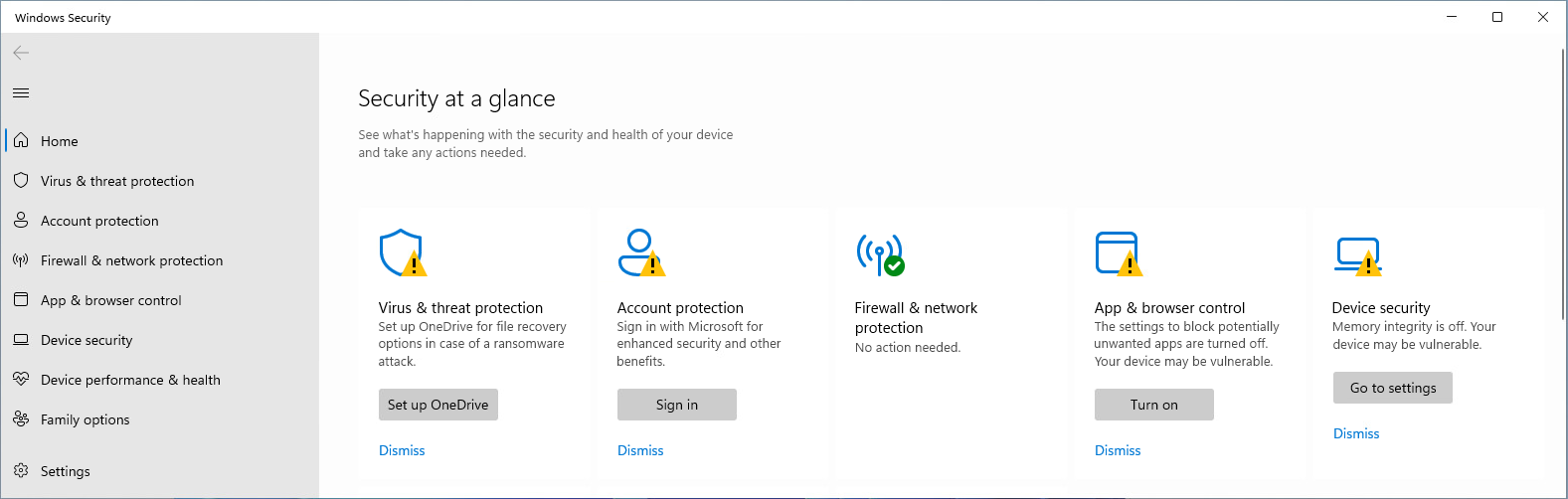
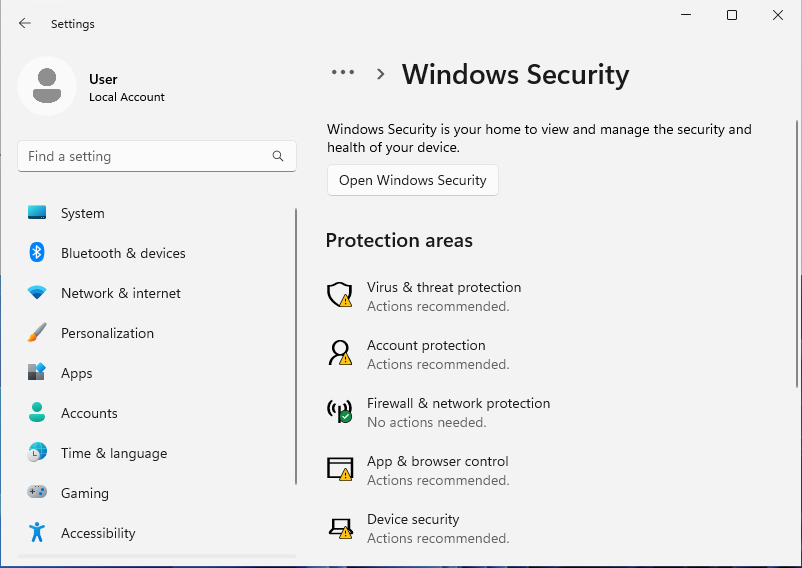
You can also get overview of security in the System > Privacy and Security > Windows Security
Secure Boot
Secure Boot is a security feature in Windows 11 designed to prevent unauthorized software from loading during the boot process. It is enabled by default in Windows 11. The key points about Secure Boot are:
- Purpose: Secure Boot helps protect your system from malware and rootkits by ensuring that only trusted software, signed by approved manufacturers, can run during startup.
- Requirements: To use Secure Boot, system must support UEFI (Unified Extensible Firmware Interface) and have it enabled. Most modern PCs meet this requirement.
Checking Status and Enabling Secure Boot
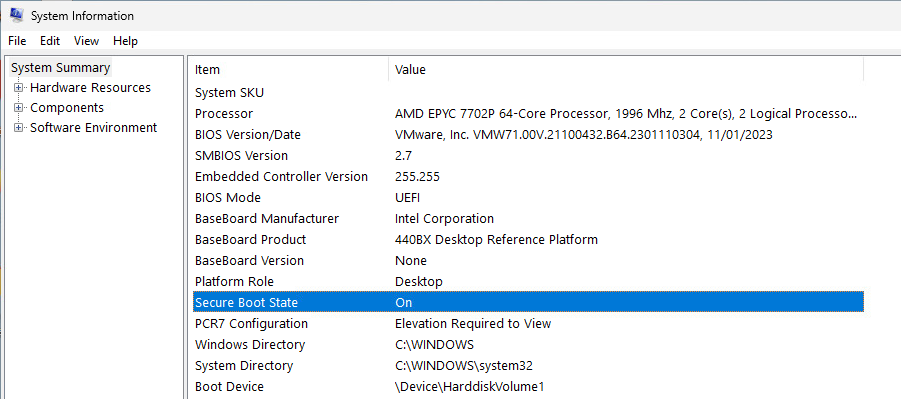
1) Check Status: You can check if Secure Boot is enabled by typing msinfo32 in the Run dialog (Win + R) and looking for the Secure Boot State in the System Information window.
 2) Enable in BIOS/UEFI: To enable Secure Boot, restart your PC and enter the BIOS/UEFI settings (usually by pressing a key like F2, F10, or Del during startup). Navigate to the Boot or Security tab, find the Secure Boot option, and enable it.
3) Compatibility: Secure Boot is required for upgrading to Windows 11. If your PC does not support Secure Boot, you may need to update your firmware or check with your PC manufacturer for support.
Malware defense
Windows Defense Antivirus
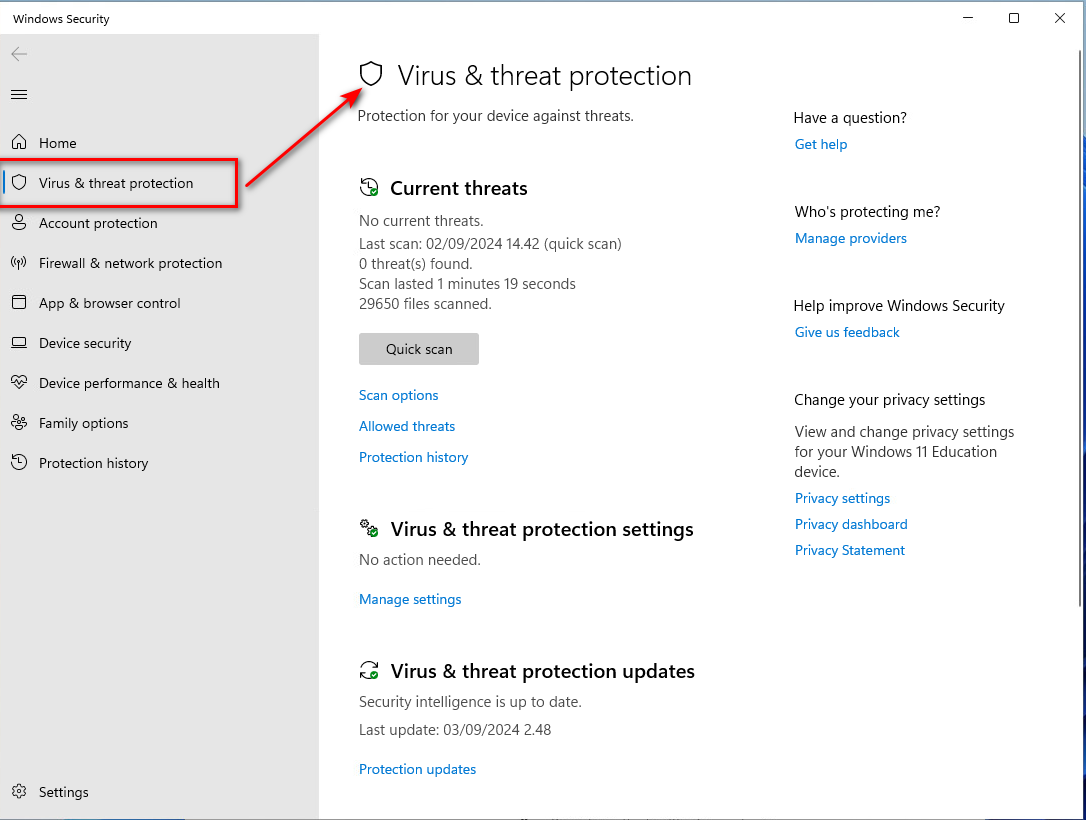 Let's start the
 Quick scan
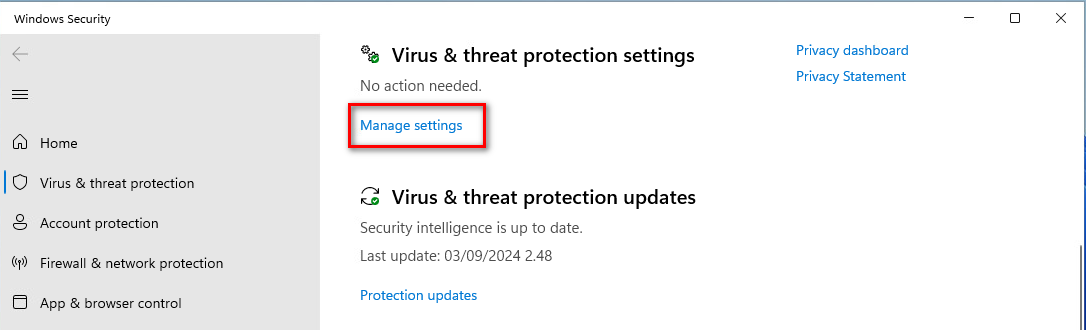
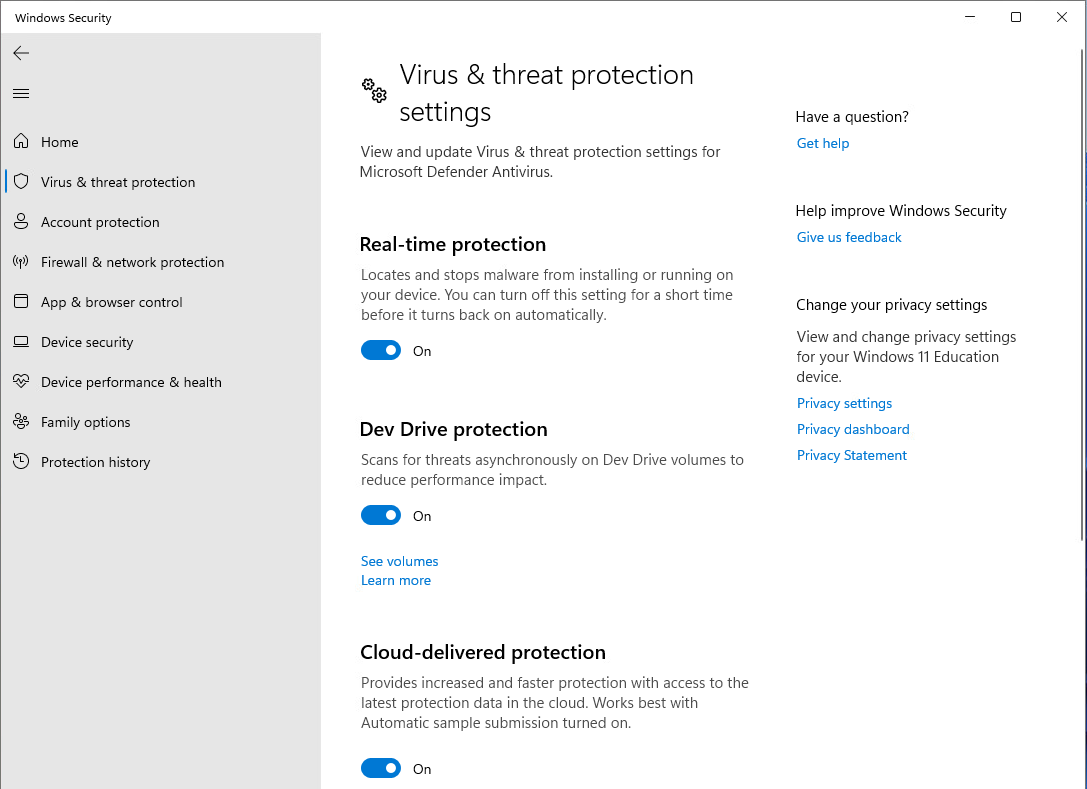
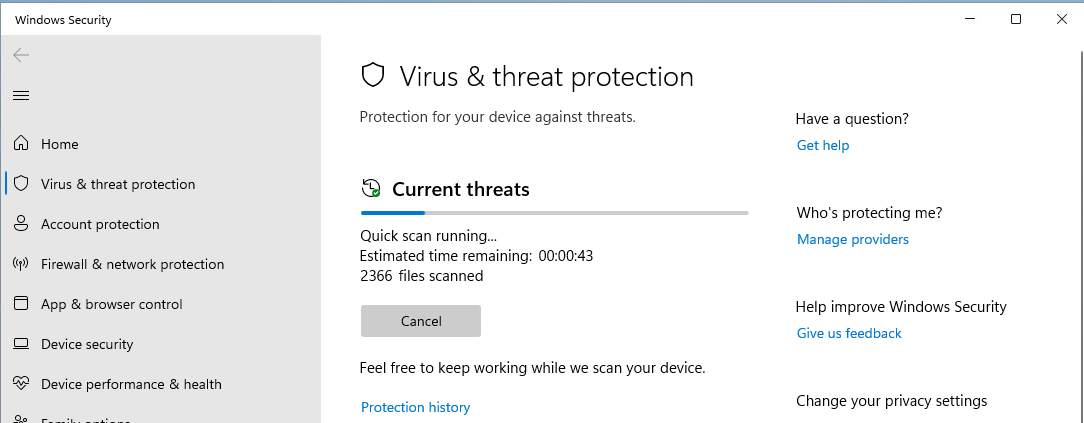 You can check and manage settings of virus and threat protection by selecting
 Manage settings
Account Protection
Account Protection in Windows 11 is a feature within Windows Security designed to help safeguard your user accounts and enhance overall system security.
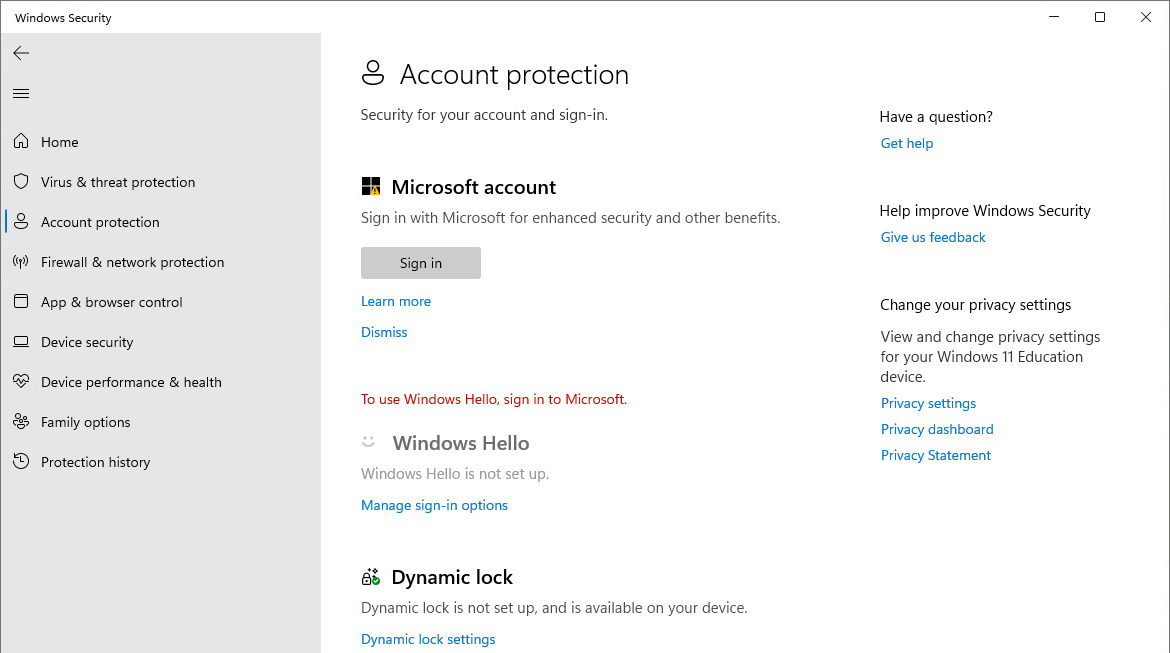
Key aspects of the account protection are:
Microsoft Account
Encourages users to sign in with a Microsoft account, which offers additional security features like two-factor authentication and password recovery options.
Windows Hello
This feature allows you to sign in using biometric authentication methods like facial recognition, fingerprint scanning, or a PIN. It provides a more secure and convenient way to access your device.
Dynamic Lock
This feature automatically locks your device when you step away. It uses Bluetooth to detect when your paired smartphone is out of range and locks your PC to prevent unauthorized access.
Notifications
Account Protection can notify you if there are issues with your Windows Hello or Dynamic Lock settings, ensuring that your security features are always functioning correctly
User account control UAC
User Account Control (UAC) is a security feature in Windows designed to prevent unauthorized changes to your operating system. UAC helps protect your computer by ensuring that changes to system settings or software installations require administrator approval. This prevents malicious software from making changes without your knowledge. UAC is available on all modern versions of Windows, including Windows 11, Windows 10, and Windows Server editions.
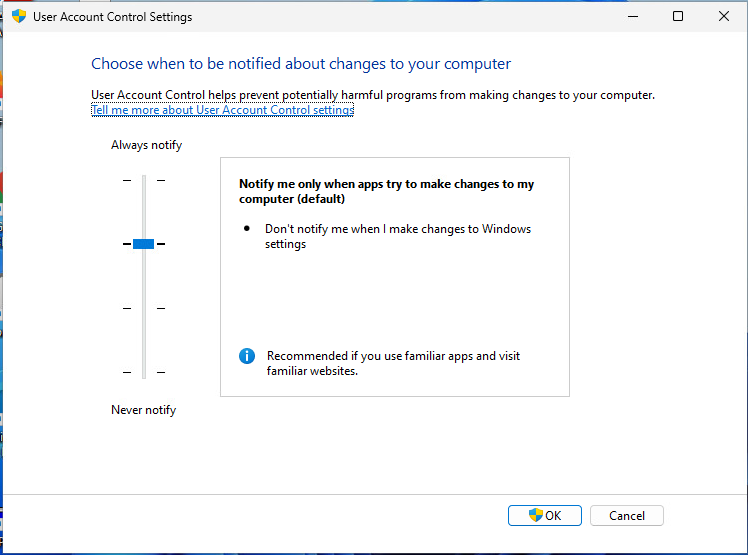
When an action requires elevated permissions, UAC prompts you with a dialog box asking for permission to proceed. This ensures that only trusted actions are allowed to modify system settings. UAC settings can be adjusted to control the level of notifications you receive. In the Start menu and selecting Change User Account Control settings
The slider allows you to choose from four levels of notification.
 Summary
By limiting the ability of applications to make changes without user consent, UAC helps protect against malware and unauthorized system modifications. It empowers users to make informed decisions about actions that might affect their system’s stability and security.

Firewall and Network Protection
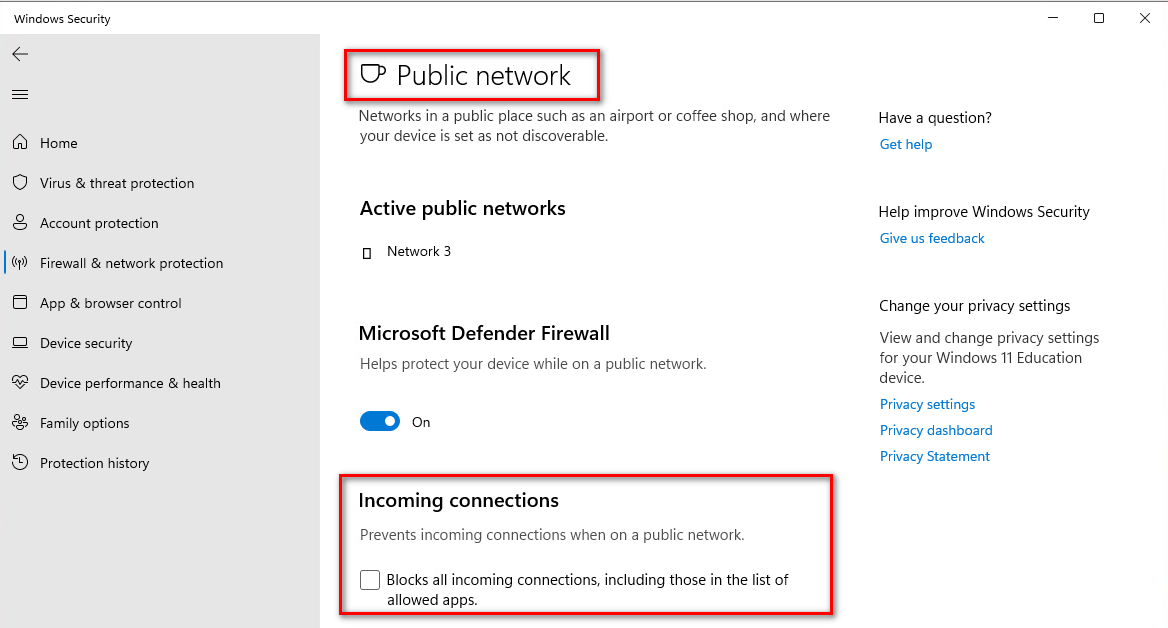
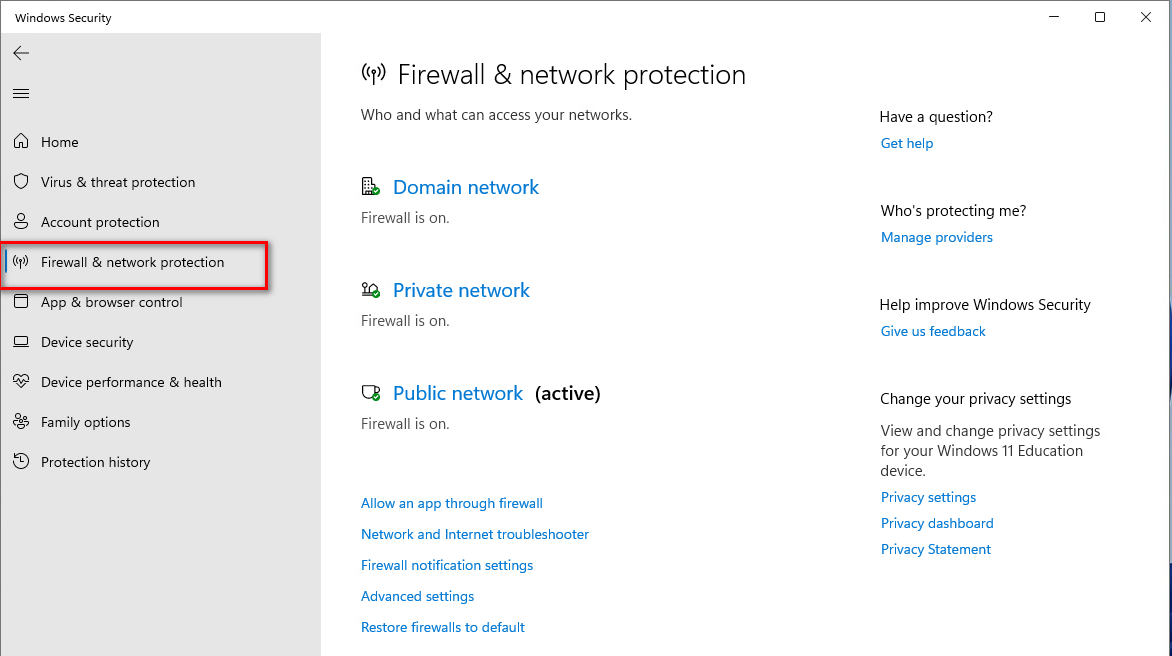 In the following picture we will prevent all incoming connections in public networks.
Application and Browser Control
Application and Browser Control in Windows 11 is a feature within Windows Security that helps protect a device from potentially dangerous apps, files, websites, and downloads.
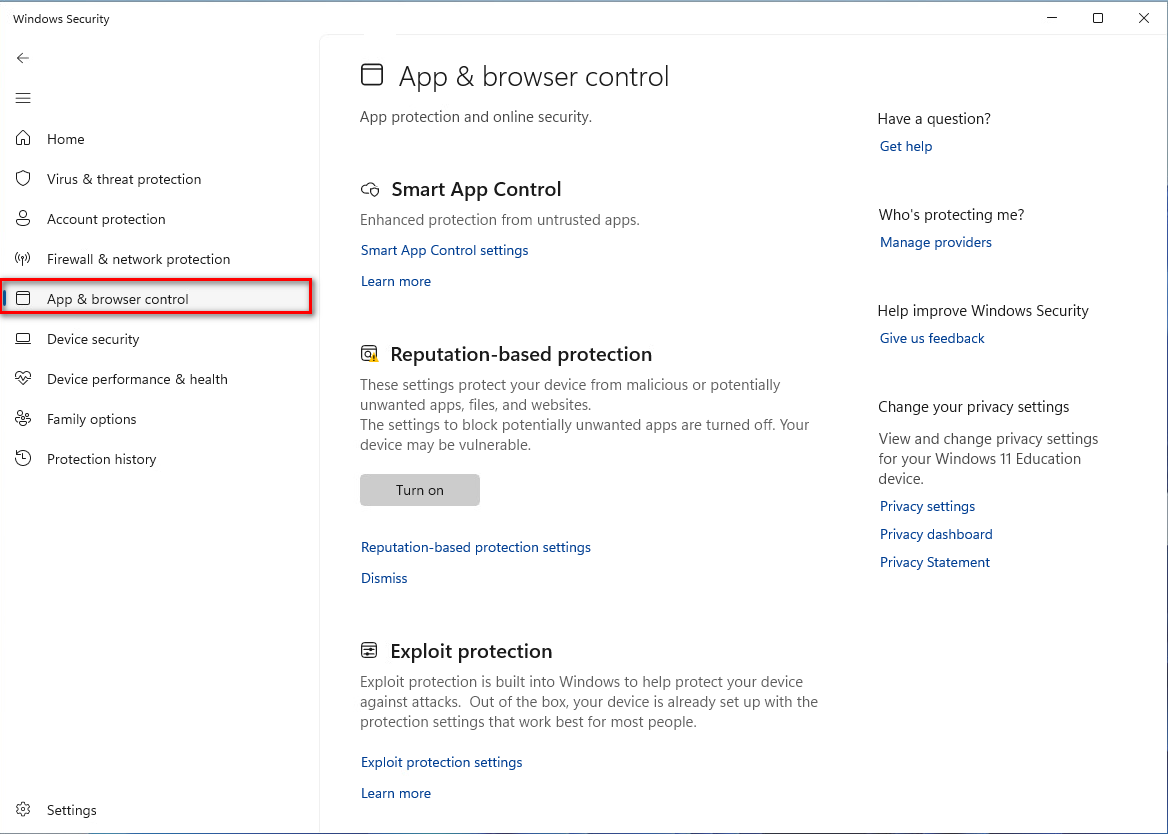 The main components are:
Smart App Control Blocks unrecognized apps and files from the internet that might be unsafe.
Reputation-Based Protection
The main components are:
Smart App Control Blocks unrecognized apps and files from the internet that might be unsafe.
Reputation-Based Protection
Uses Microsoft’s database to block apps and files that are known to be harmful or potentially unwanted1.
Exploit Protection
Provides system-level mitigation to protect against various types of exploits.
Device Security
Device Security in Windows 11 is a feature within Windows Security that helps protect your device from various threats.
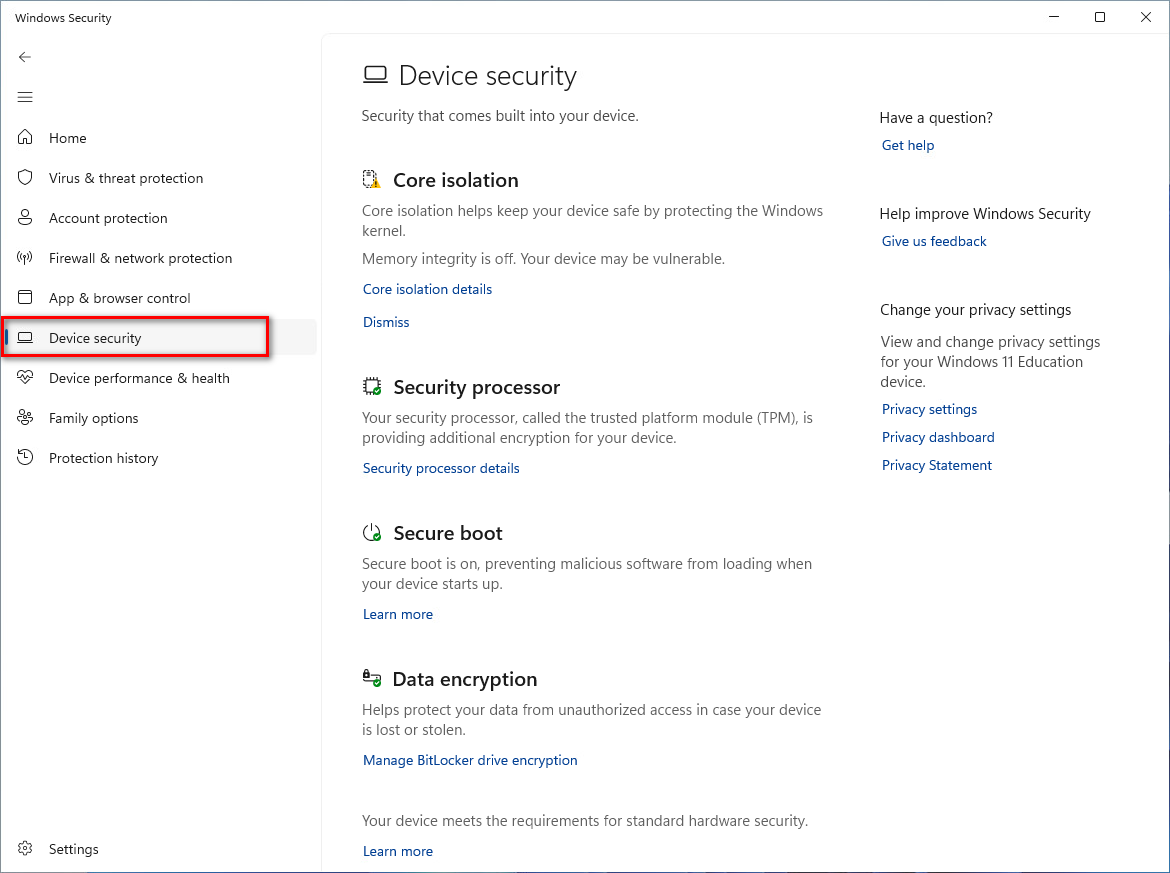 The main components are:
Core Isolation
The main components are:
Core Isolation
Provides added protection against malware and other attacks by isolating computer processes from your operating system and device.
Security Processor (TPM)
The Trusted Platform Module (TPM) provides additional encryption for your device.
Secure Boot
Prevents unauthorized software, such as rootkits, from loading during the boot process. Ensures that only trusted software can run when your device starts.
Data encryption
With BitLocker you can encrypt your private and sensitive data in drives. Look closer later in this document.
Hardware Security Capability
Indicates the security capability of your device. You can check if your device meets the requirements for standard hardware security
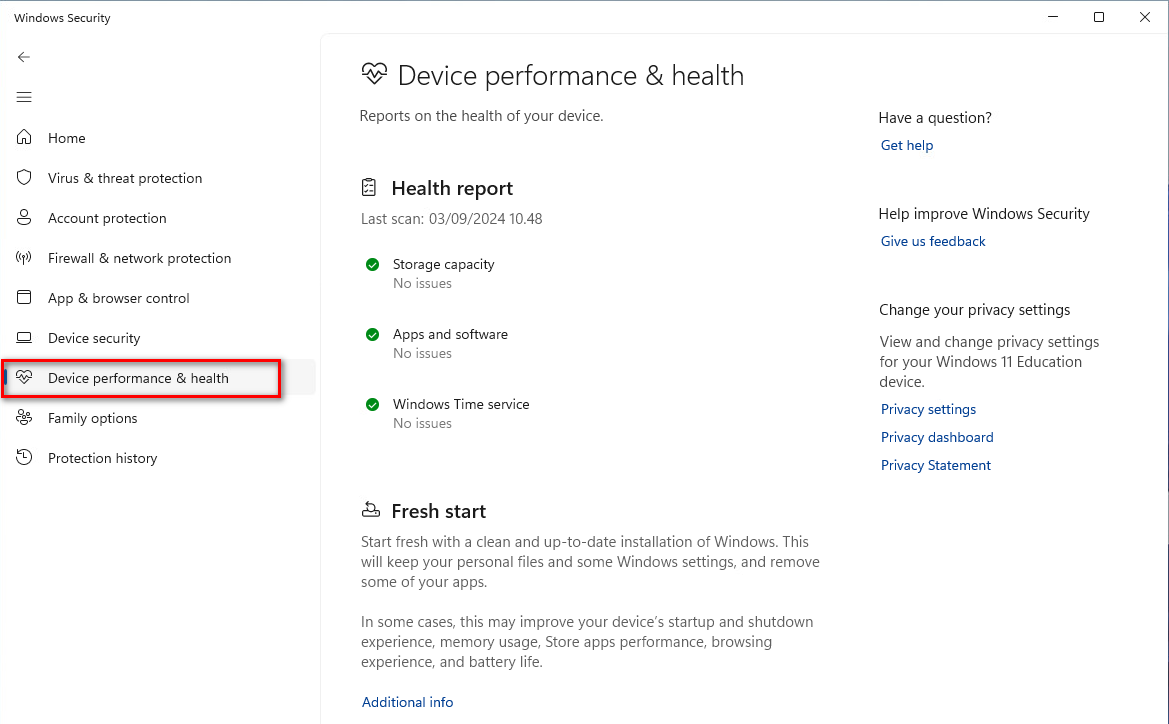
Device Performance and Health
Device Performance and Health gives you a quick look of your device performance and health including storage capacity, apps and software sissuen and state of Windows Time Service.
Updates
Make updates to come automatically and frequently! Then you will be in safe.
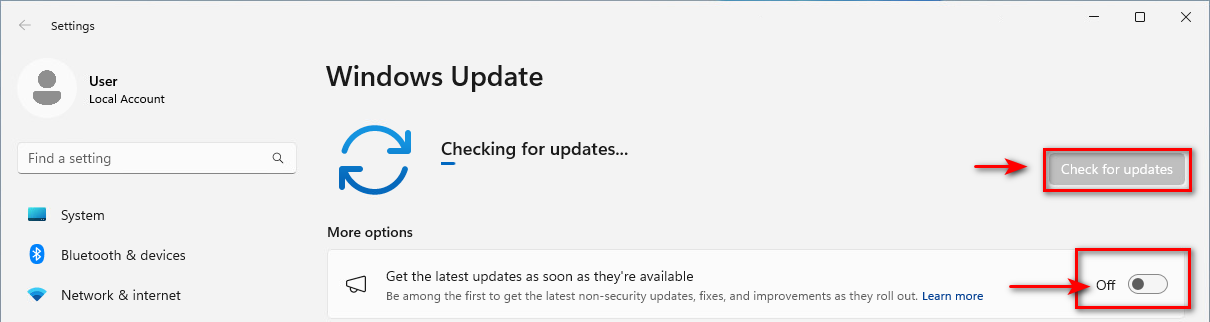
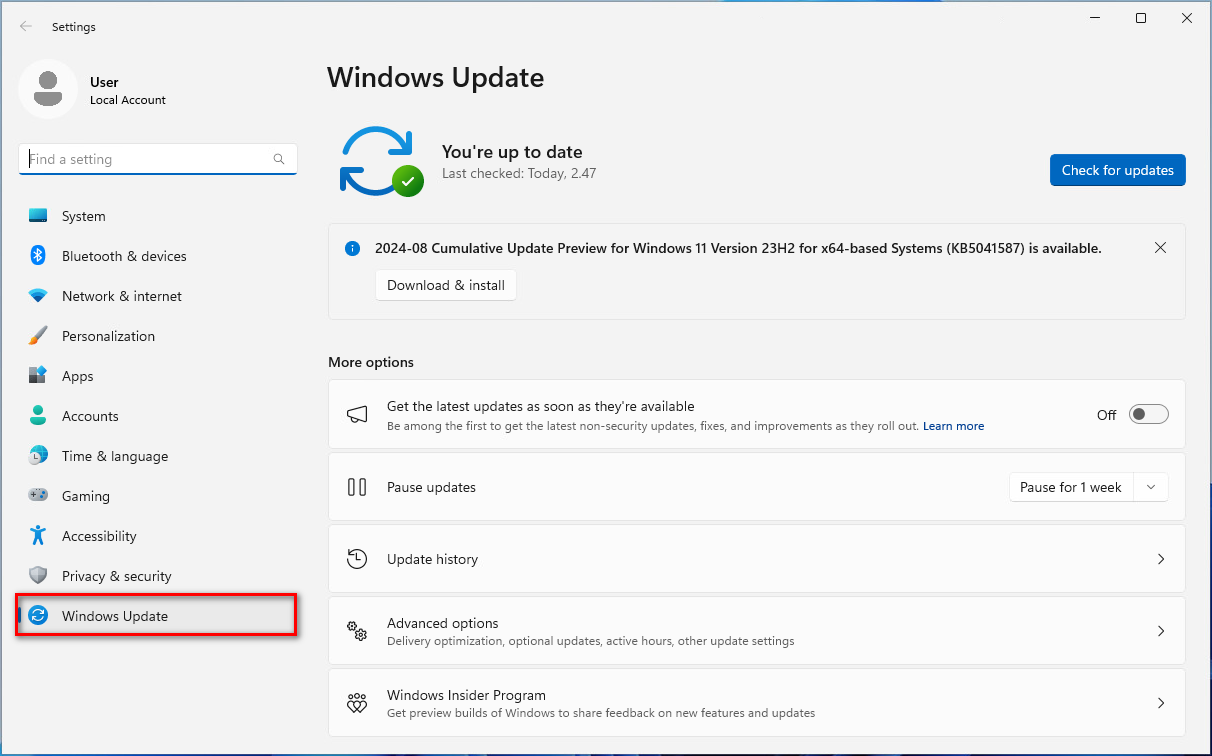 You can check for latest updates or you can get the latest updates as they are availabel. Choice is yours.
BitLocker
BitLocker is a built-in encryption feature in Windows 11 that helps protect your data by encrypting your drives. How to set Bitlocker
Security is as good as the weakest link in the chain
Remember, maintaining good security practices—such as using strong passwords, avoiding suspicious links, and keeping software updated—is crucial for a secure Windows 11 experience!